
Two sides.
One job.
One person needs photos of a place they cannot get to. Another is already out with a phone. Here is what each of them actually does, step by step.
For requesters
You need photos of a place you cannot get to. Post it, and someone nearby goes.
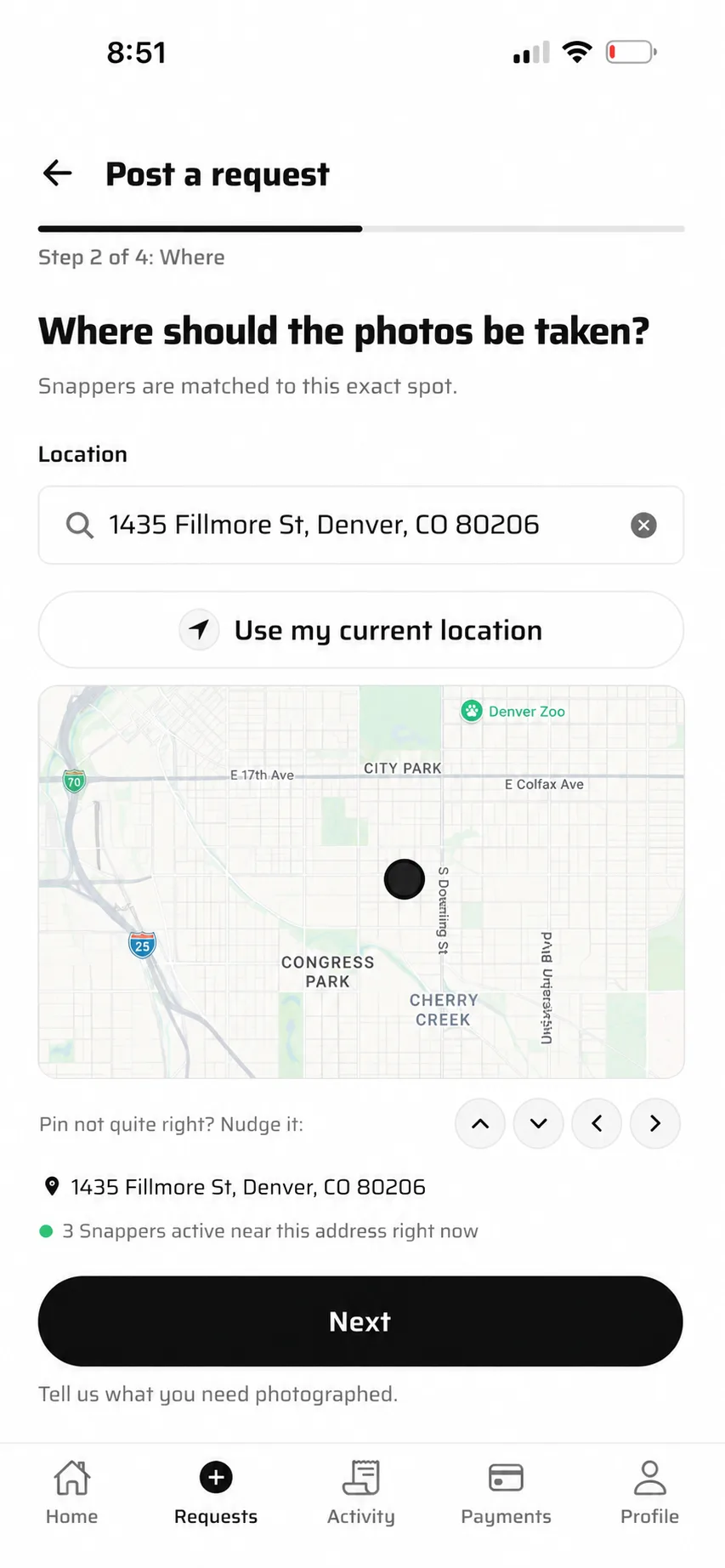
Drop a pin
Type the address or use your current location. Nudge the pin if it lands on the wrong side of the building.
Before you go further, the app tells you how many Snappers are active near that address right now.
Write the shot list
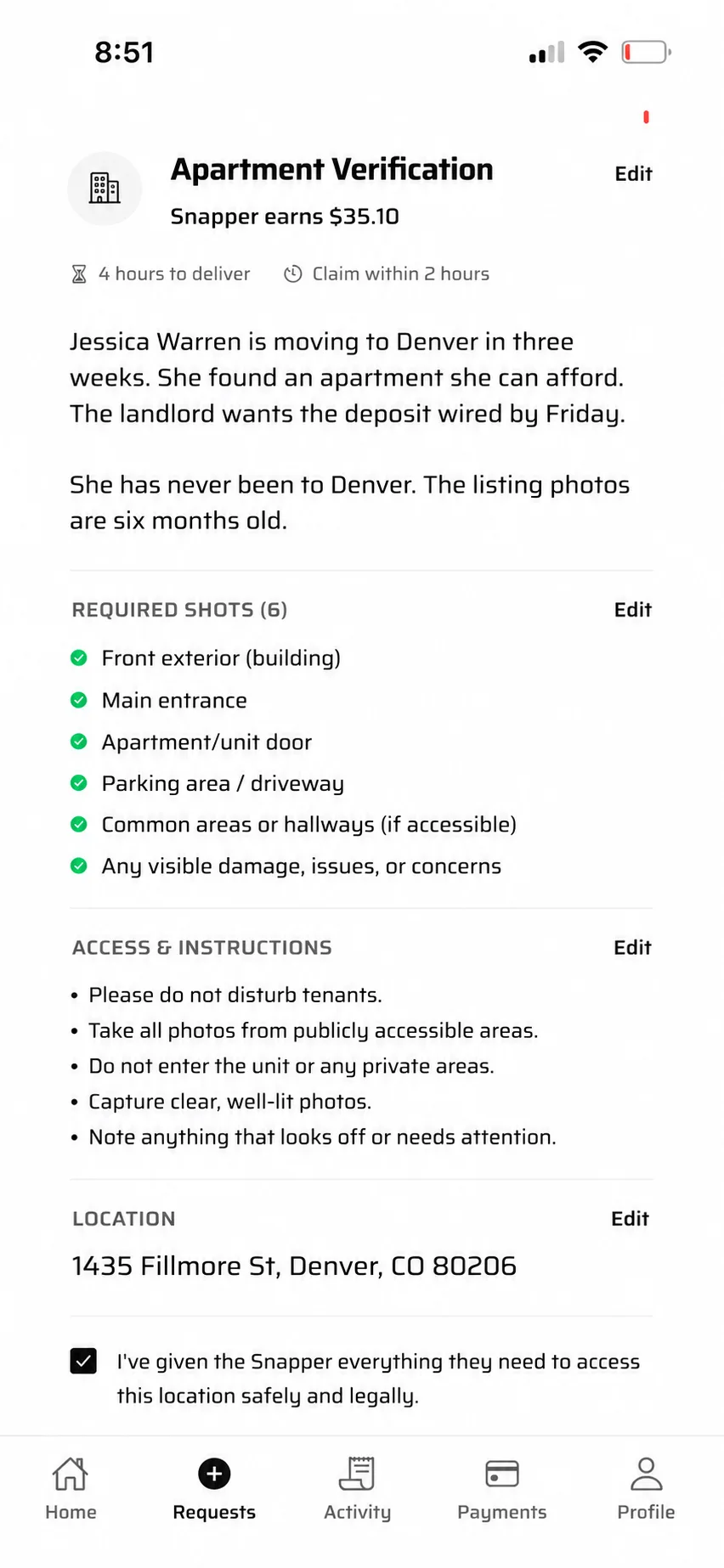
You define the shots. Nothing is left to interpretation, so completeness is a checklist rather than a judgment call.
Add access rules too: do not disturb tenants, public areas only, do not enter the unit.
Held, not charged
Posting authorises the money on your card and holds it there. It does not move until you say the work is done.
-
You post$39 is authorised on your card and held. No money has moved.
-
Photos landStill held. Delivery is not payment.
-
You approveThe hold is captured and the Snapper is paid.
-
You cancelThe hold is released. You were never charged.
Approve, or ask again
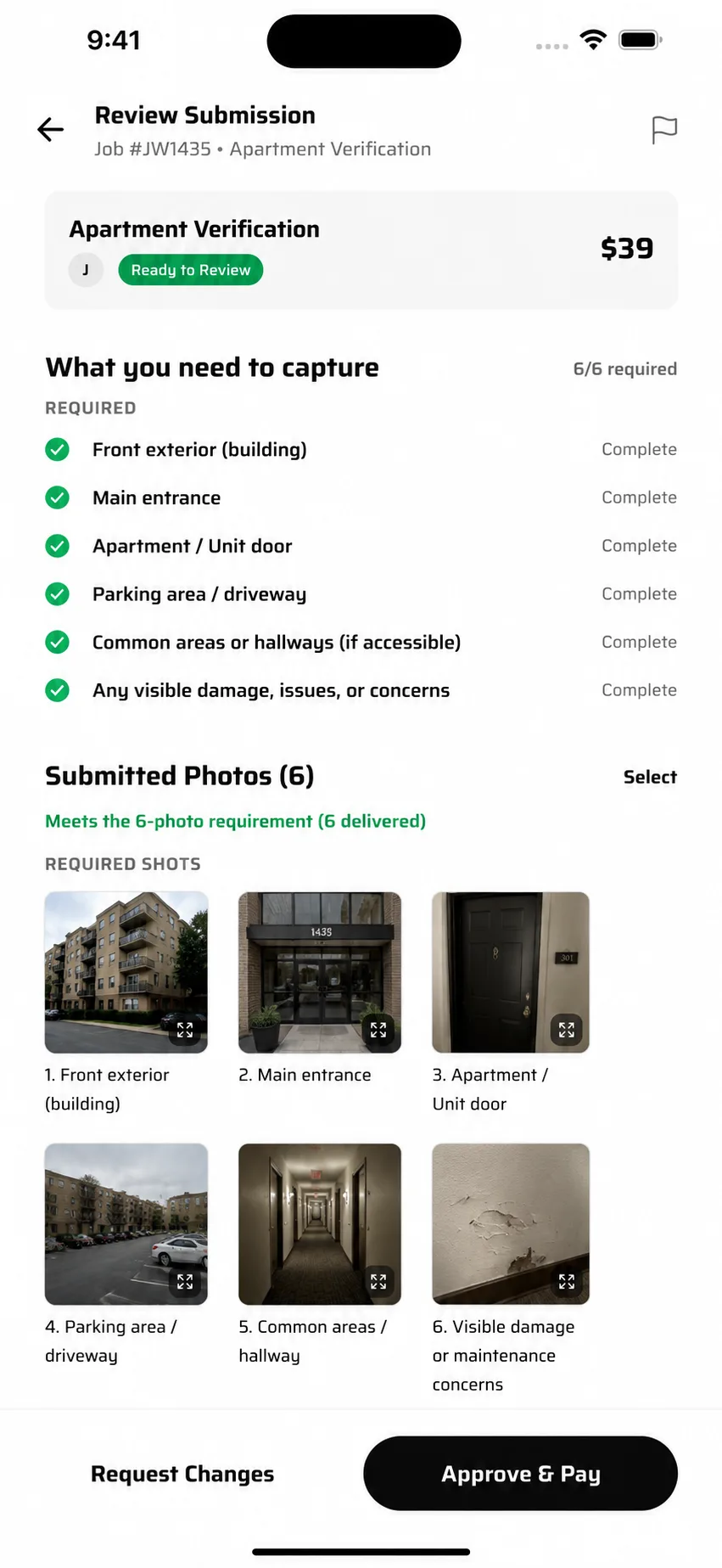
Your own checklist comes back to you, ticked. Every required shot is listed with its photo, and you can open any one full screen.
Approve and Pay releases the money. Request Changes sends the Snapper back, and the hold stays exactly where it is.
For Snappers
You are already out with a phone. Take a job on the way.
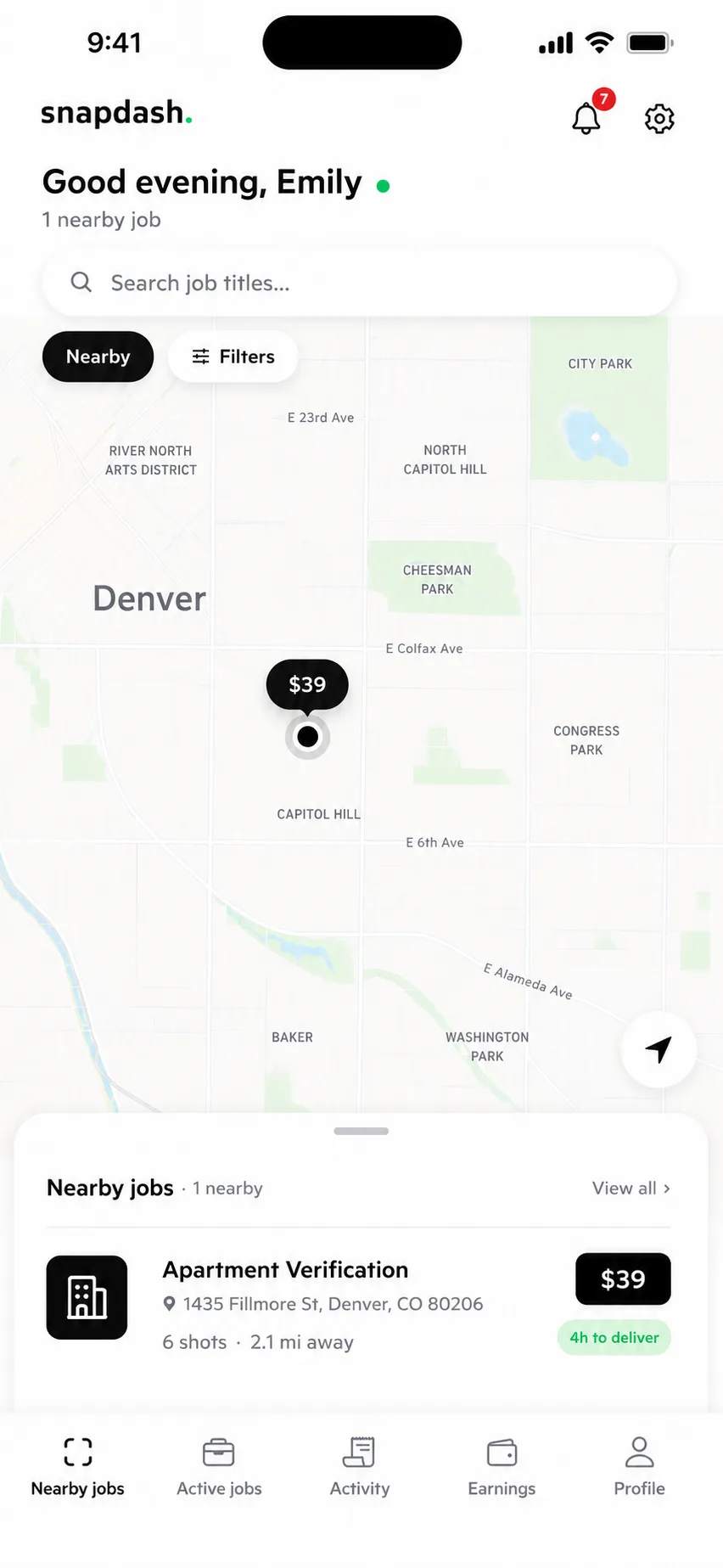
See what is near you
The fee is on the pin before you tap anything. Nothing is assigned to you — you take a job or you leave it.
Read it before you accept
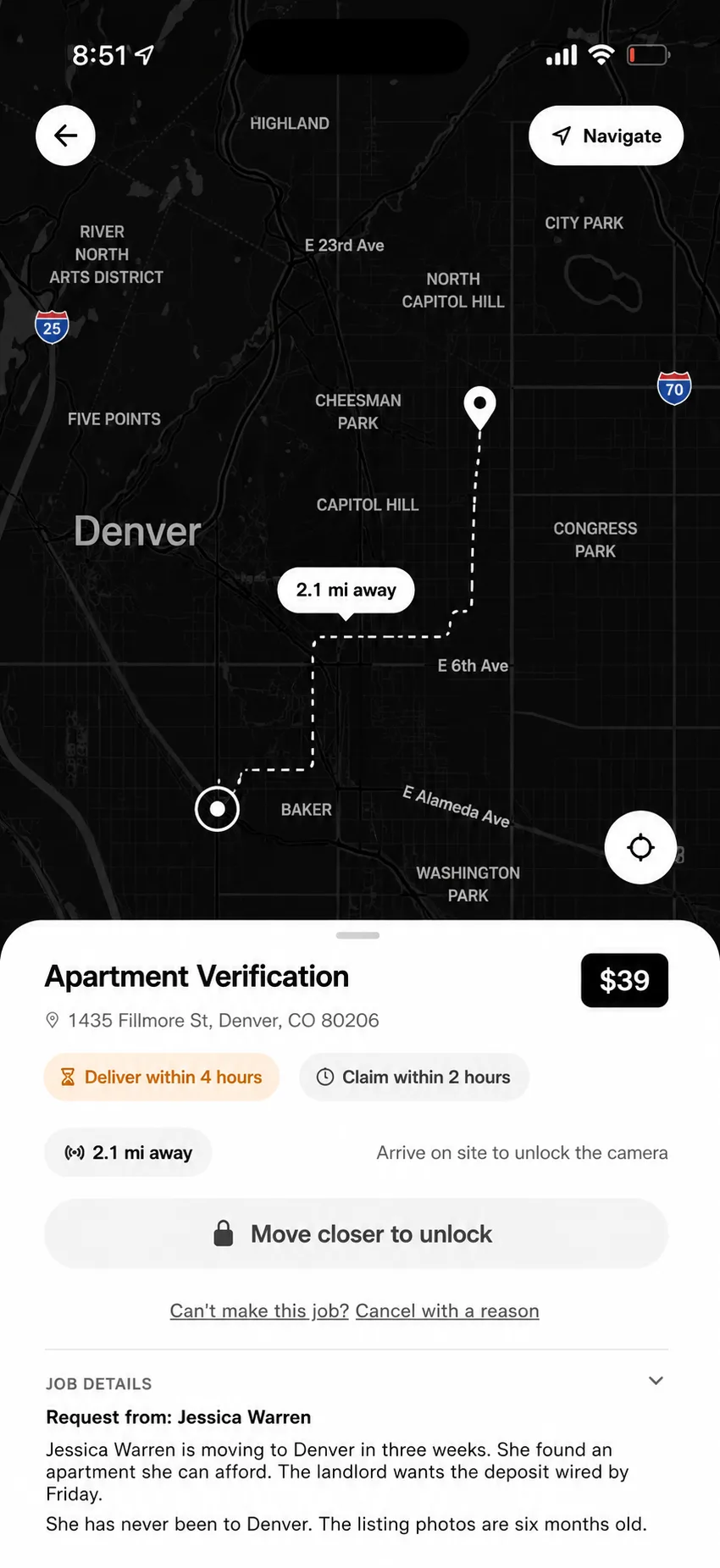
You see who is asking, and why. Jessica is relocating to Denver in three weeks and has never seen the building — knowing that makes you better at the job.
One job at a time. Take the one you will actually finish; if you cannot make it, cancel and it returns to the pool.
Get there, then shoot
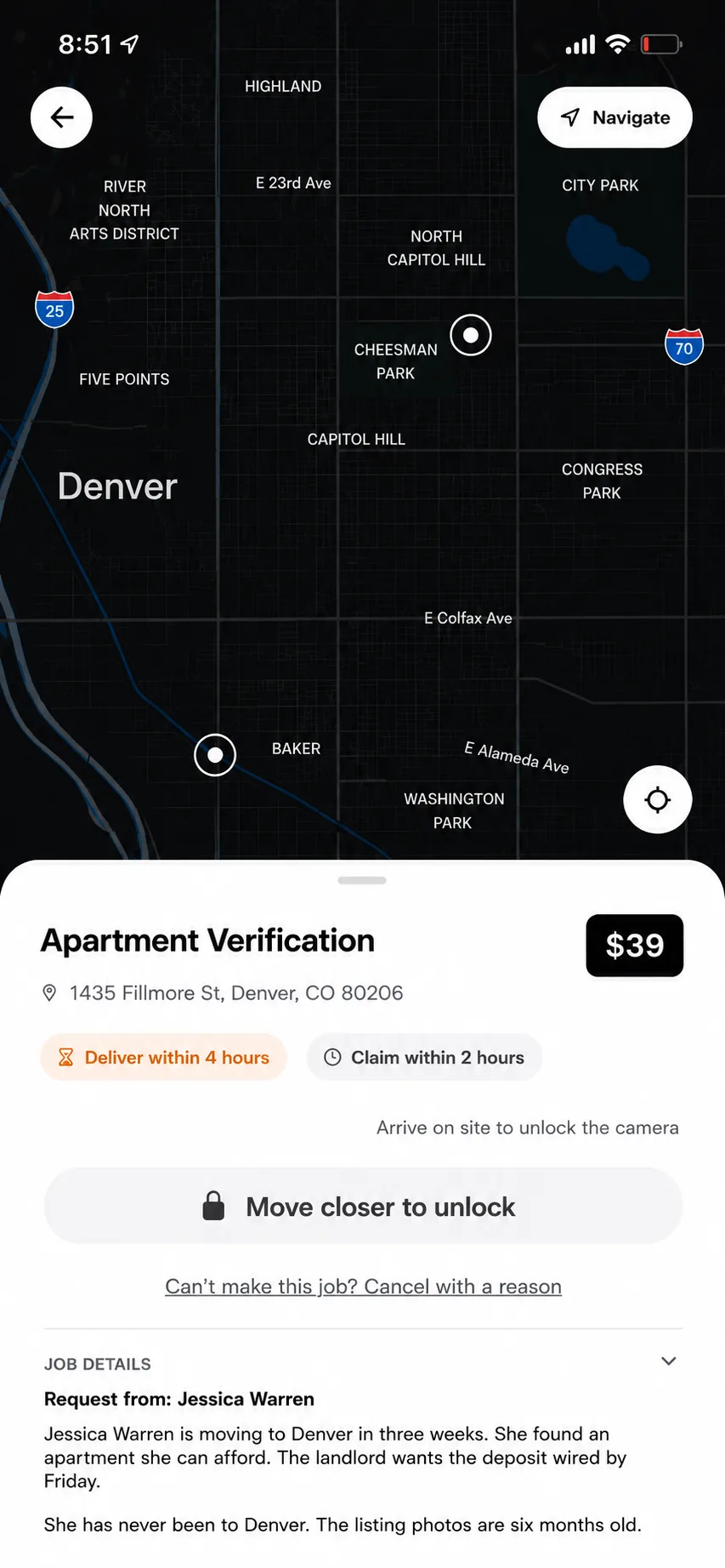
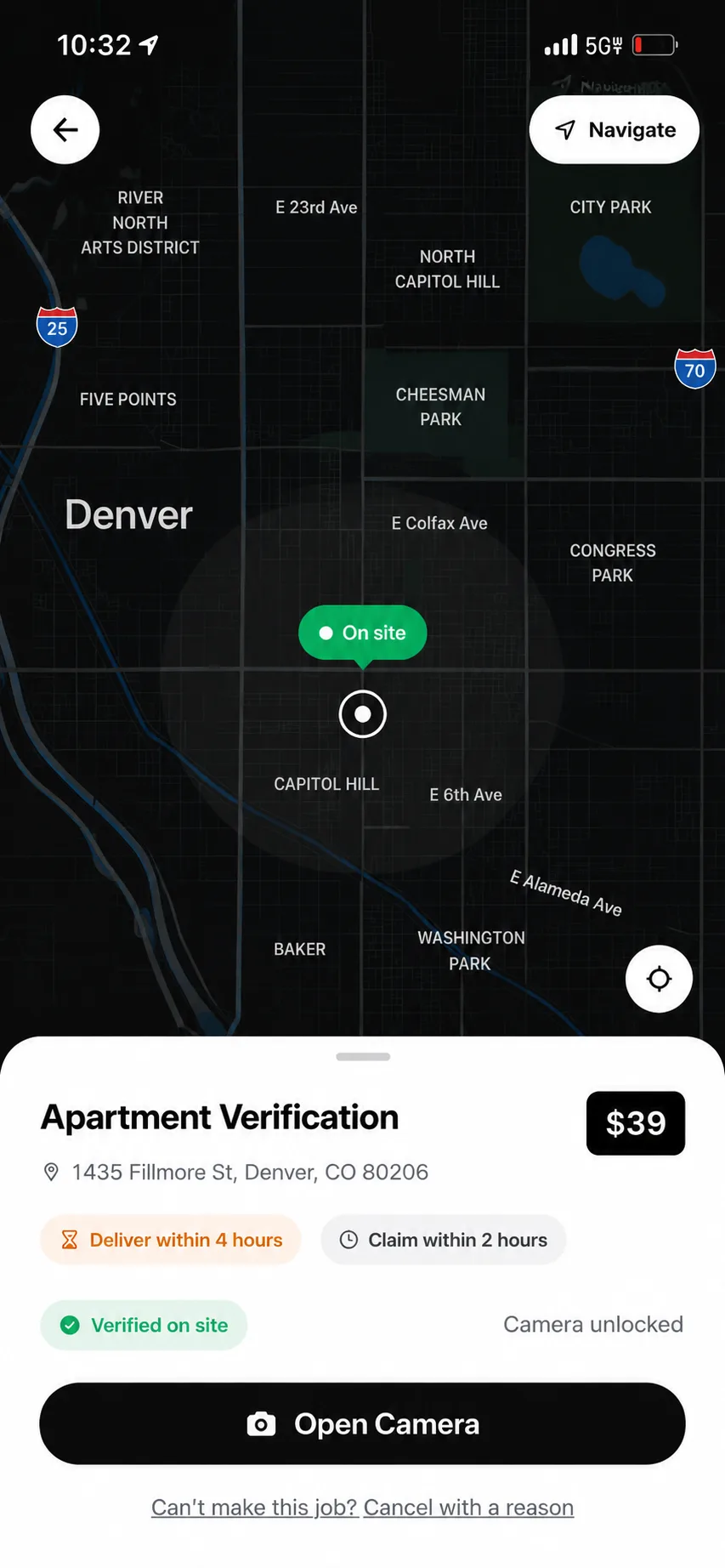
The camera will not open until you are there. Within about 70 feet of the address, GPS confirms it and the shutter goes live.
This is why a requester can trust someone they have never met.
The same screen, locked and unlocked. Away from the address the button reads "Move closer to unlock." On site it goes live.
The camera stays locked until your phone reports it's within 70 feet, checked on the server.
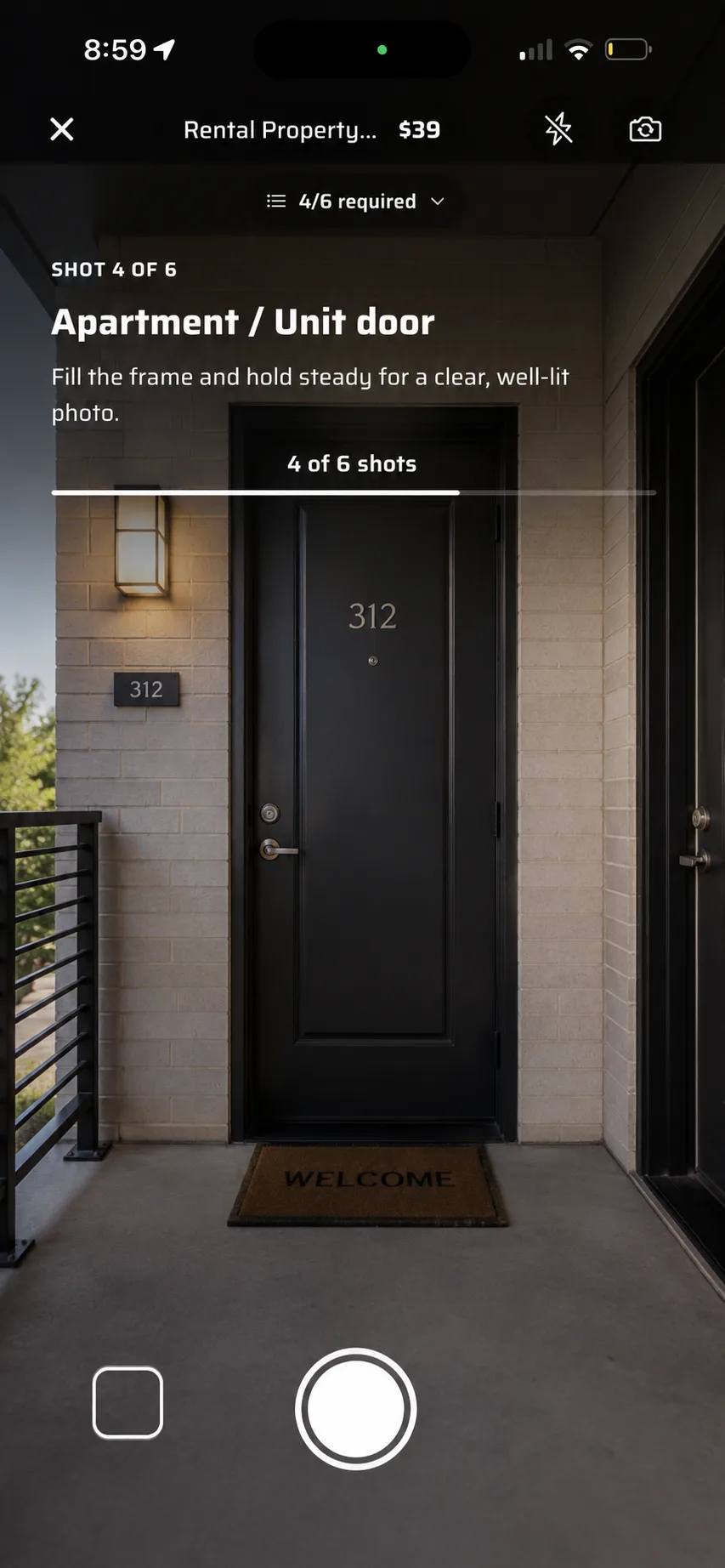
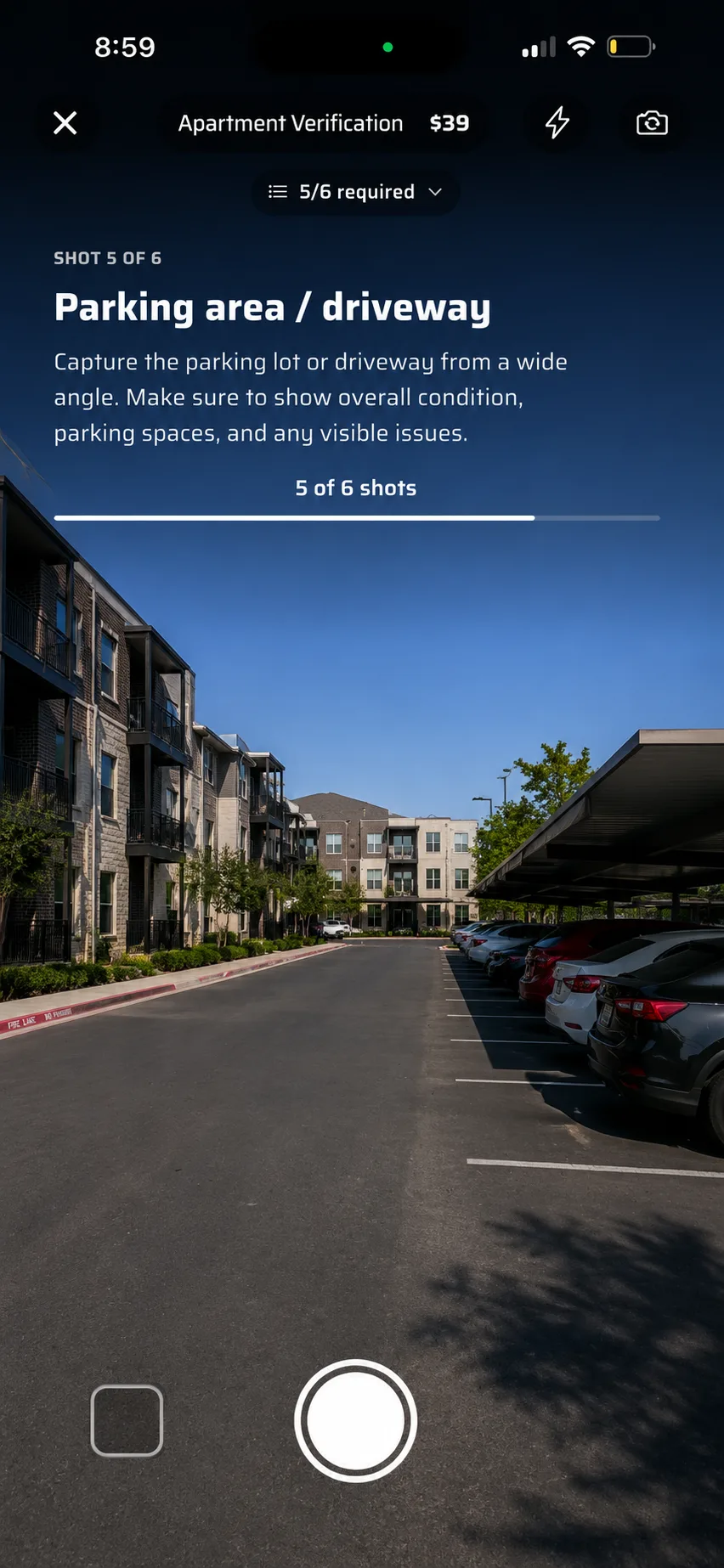
The camera tells you what to take
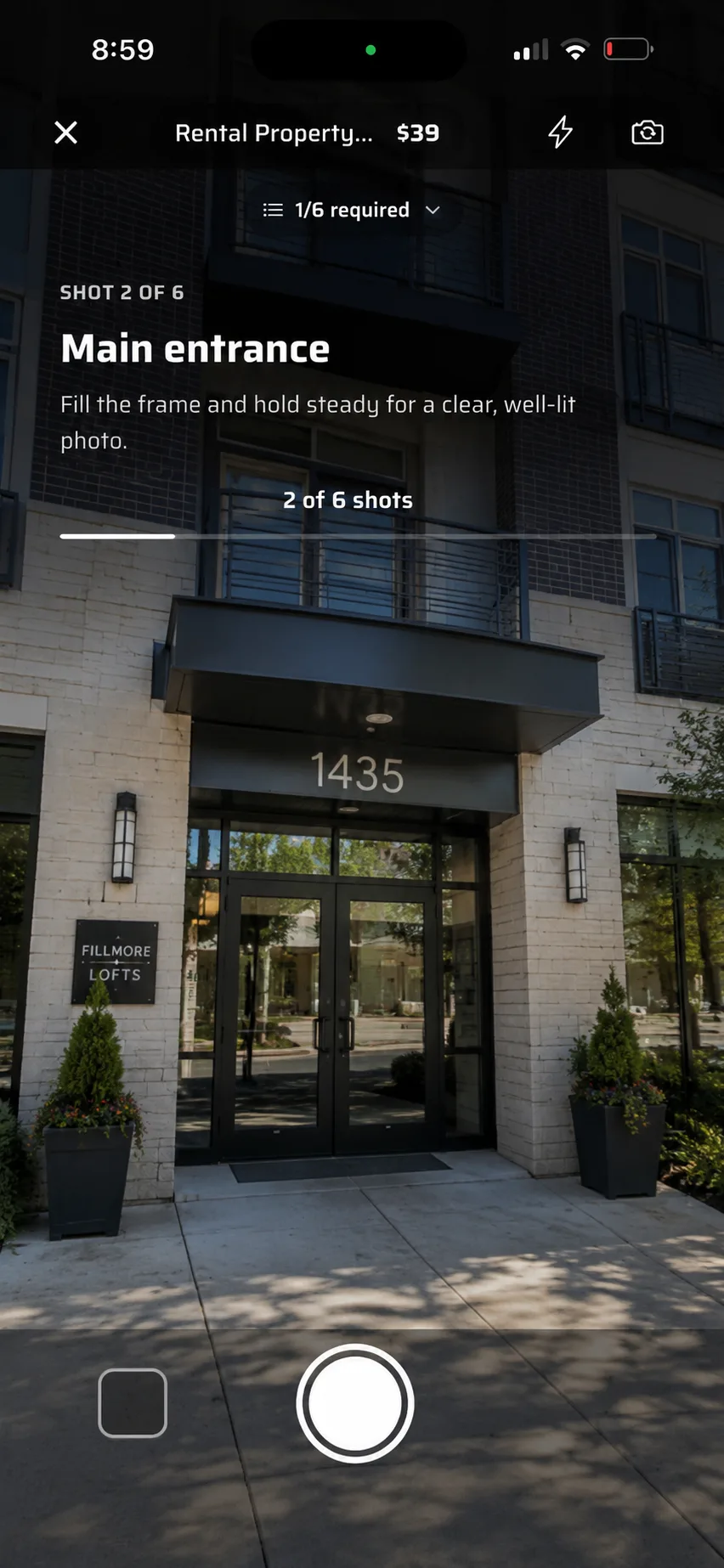
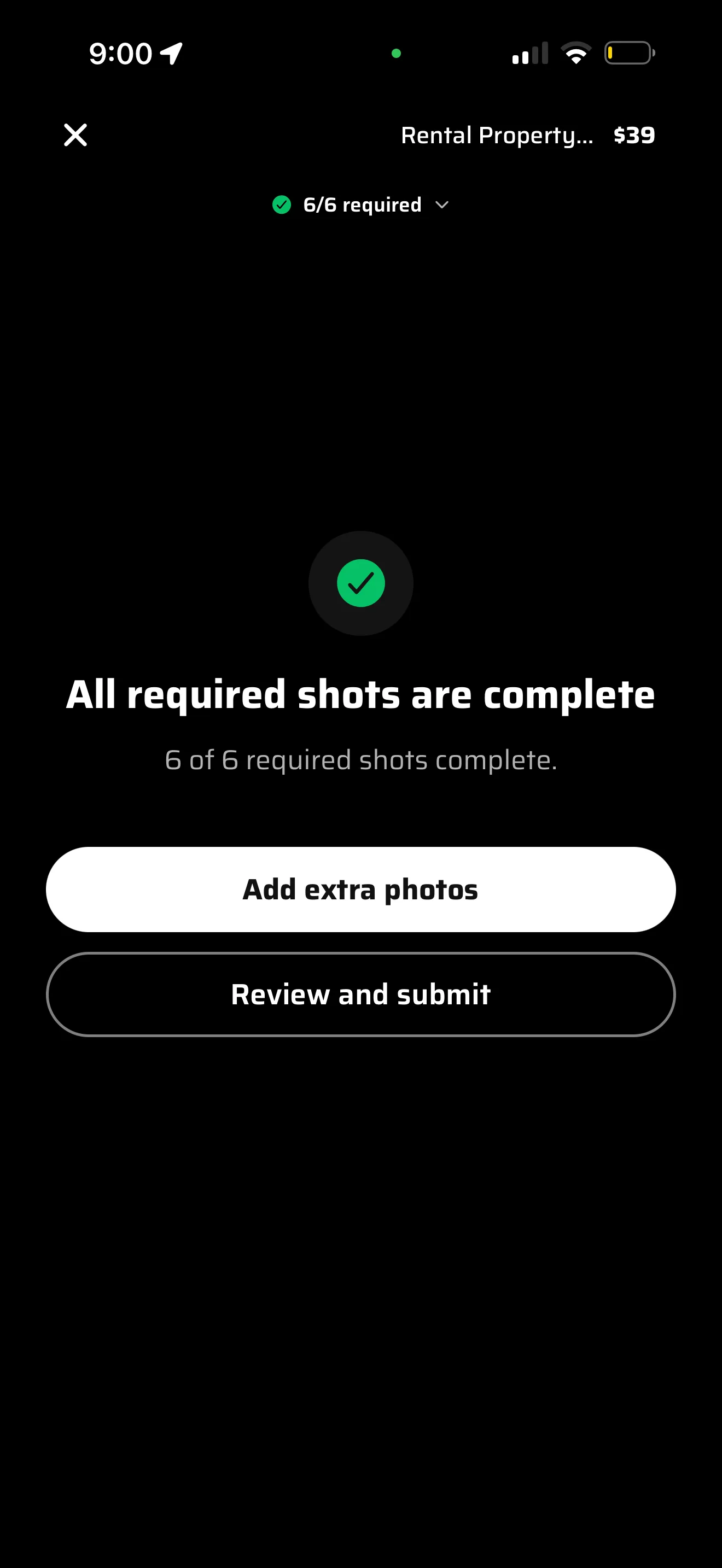
The app names each shot and counts you through the list. You cannot submit until every required frame is captured.
Each frame arrives with its own brief — what to include, and what the requester is looking for. The counter runs the whole time.
Submit, then get paid
You are paid when the requester approves — not on delivery. If the photos need work, you reshoot and the hold stays alive.
- Job pays$39.00
- Service fee, 10%−$3.90
- You keep$35.10
The rules
Money is held at post
Authorised, never charged, until approval.
One job at a time
Enforced server-side, so nothing is hoarded.
On site or no camera
Within 70 feet of the address, GPS verified.
Public areas only
No entering units, no disturbing tenants.
Paid on approval
Not on delivery. Reshoots keep the hold alive.
Cancel any time
Before approval, no charge and no penalty.
Post. Match. Approve.
SnapDash is invite-only during beta.
Request an Invite